home chevron_right Apps chevron_right Productivity chevron_right Button Master: Assistive Touch


Flexcil Notes & PDF Reader
v1.5.0.21
• Unlocked
| Updated On | |
|---|---|
| Google Play ID | com.mozapps.buttonmasterpaid |
| Category | Productivity |
| Version | 5.7 |
| Size | 14 MB |
| MOD Features | Premium |
| Requires | Android 6.0 |
| Price | |
| $18.99 | |
| Content Rating | |
| Everyone | |
| Internet Required | |
| Unknow | |

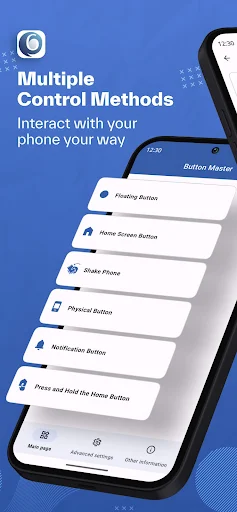
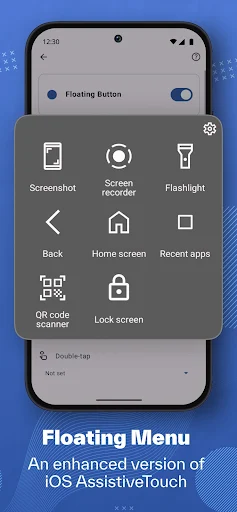
Button Master: Assistive Touch is an Android utility designed to make common device controls easier to access from a convenient on-screen interface. Instead of repeatedly reaching for physical buttons or navigating through system menus, users can use a floating touch control to access selected actions. This approach can be useful for everyday navigation, accessibility needs, or situations where physical buttons are difficult to press. With a focus on convenience and customizable shortcuts, the app offers a practical way to create a more comfortable interaction with an Android device.
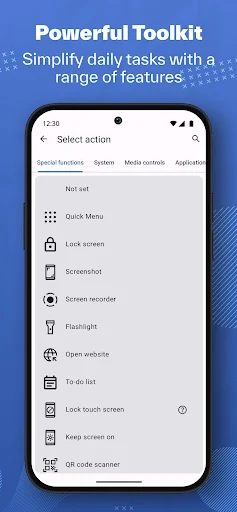
The main purpose of Button Master: Assistive Touch is to provide quick access to frequently used device functions. A floating button can remain available over other applications, allowing users to open controls without leaving the current screen. Depending on the device and supported permissions, available actions may include navigation, volume control, screen-related functions, or other shortcuts.
Physical buttons are useful, but frequent pressing can sometimes be inconvenient. An on-screen alternative can provide another way to interact with basic device functions. This can be particularly helpful for users who prefer touch-based controls or want a convenient backup when physical buttons are less comfortable to use. The usefulness of each function can depend on the Android version and device manufacturer.
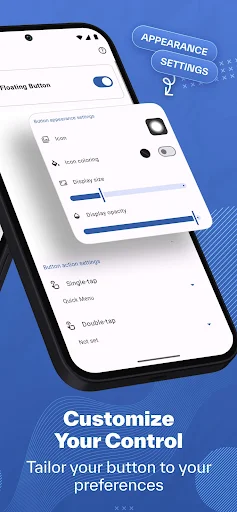
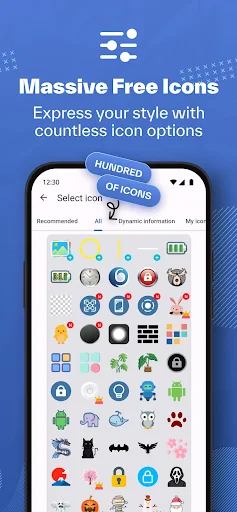
Customization can make an assistive touch tool more practical. Users may be able to adjust the position, appearance, size, or available shortcuts of the floating control. Keeping frequently used actions within easy reach can reduce unnecessary navigation. A well-organized shortcut panel can also make routine tasks faster, especially when the same controls are used throughout the day.
An assistive control can be useful while browsing, reading, watching videos, or using other applications. Instead of opening system settings for every small adjustment, users can access supported shortcuts from the floating interface. However, some Android functions require special permissions or may be restricted by the operating system. Users should review requested permissions carefully and enable only the features they actually need.
Open Button Master: Assistive Touch and review the available settings and permissions. Enable the floating control if required, then choose the shortcuts you want to access quickly. Adjust its position and appearance so that it does not interfere with other content on the screen. Test each shortcut before relying on it for regular use. If the floating control becomes distracting, reduce its size, move it to a less intrusive location, or disable features that are not necessary.
Button Master: Assistive Touch provides a convenient alternative for accessing selected Android controls through a floating touch interface. Its main appeal is the ability to place commonly used actions within easy reach without constantly relying on physical buttons or system menus. Customization can make the interface more comfortable for different users and screen layouts. At the same time, compatibility and available functions can vary between Android devices. Users should also consider the permissions required by floating controls. Overall, the app can be a useful utility for anyone looking for a simpler and more accessible way to interact with everyday Android functions.