home chevron_right Apps chevron_right Photos & Videos chevron_right VR Media Player

Download video no watermark
v2.11.1
• Premium
| Updated On | |
|---|---|
| Google Play ID | com.xojot.vrplayer |
| Category | Photos & Videos |
| Version | 2.6.3 |
| Size | 5 MB |
| MOD Feature | Not available |
| Requires | Android 6.0 |
| Price | |
| Free | |
| Content Rating | |
| Everyone | |
| Internet Required | |
| Unknow | |

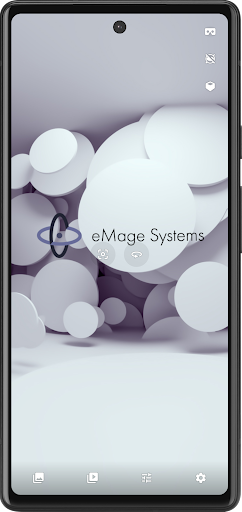
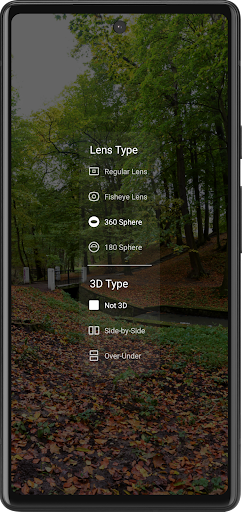
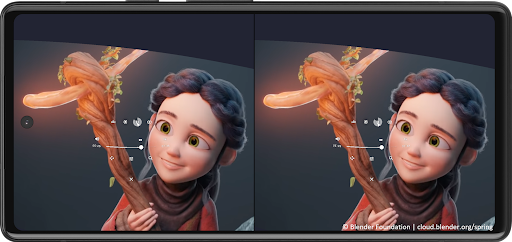
VR Media Player transforms the way you watch videos by bringing 3D visuals and panoramic content into a virtual reality environment. When paired with a compatible VR headset, the application lets you look around a scene instead of being limited to a traditional flat screen. Whether you want to explore distant locations or enjoy immersive video content, it offers an accessible way to experience virtual reality directly from your Android phone.
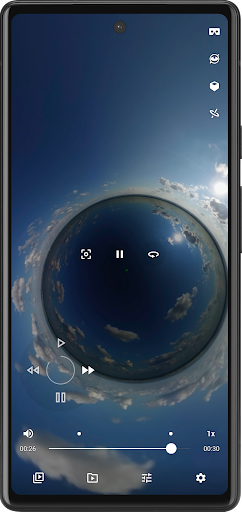
VR Media Player is a mobile application designed to play 3D and 360-degree videos through supported virtual reality headsets. It creates a viewing environment that allows users to experience panoramic footage from different angles, making ordinary video playback feel more interactive.
Rather than requiring an expensive dedicated VR system, the application works with certain smartphone-compatible headsets. This approach makes immersive entertainment more accessible to users who want to experiment with virtual reality without investing in complicated equipment.
One of the application’s practical advantages is its support for different types of mobile VR viewers. Devices such as Google Cardboard and Samsung Gear VR are among the headset options associated with smartphone-based virtual reality experiences. Compatibility may vary depending on the headset model, Android device, and application version, so checking the requirements before connecting everything is important.
You do not necessarily need premium equipment to get started. More affordable headsets can provide a basic panoramic viewing experience, although their lenses, comfort, and display quality may differ from higher-end products. Choosing a suitable headset will help you enjoy the application without spending more than necessary.
Having access to different video formats makes a VR player more convenient, especially when your content comes from multiple sources. VR Media Player supports common formats such as MP4 and AVI, allowing users to open a range of compatible video files without relying on a separate conversion process.
However, not every file will necessarily work. Playback also depends on factors such as the video codec, resolution, and encoding settings. If a video fails to open, checking its technical specifications or trying another supported file may help resolve the issue.
Image quality plays an important role in virtual reality because the video is displayed close to your eyes through the headset lenses. VR Media Player is designed to preserve the quality of compatible source videos, allowing users to enjoy detailed scenes when their devices support the required resolution and playback performance.
The final result also depends on your smartphone’s screen, processing power, headset optics, and the original video file. A high-resolution source combined with suitable equipment can produce a more convincing viewing experience, while lower-quality footage may appear less sharp when magnified through VR lenses.
Traditional videos usually restrict your view to a fixed rectangular frame. By contrast, 360-degree footage allows you to look around the recorded environment and discover details that might otherwise remain outside the camera’s field of view. VR Media Player takes advantage of this format to create a more engaging way to explore different scenes.
You can watch travel recordings, virtual tours, nature footage, and other panoramic content from compatible sources. Instead of simply observing a destination through a screen, you can turn your head to inspect the surrounding environment. The sense of depth and perspective also makes supported 3D videos feel different from conventional 2D playback.
For a more comfortable session, adjust the brightness and other available display settings according to your surroundings. It is also worth choosing content with suitable resolution and smooth playback, since blurry images or inconsistent performance may reduce immersion.
VR Media Player can make viewing more convenient by taking advantage of supported device sensors and headset controls. Depending on the hardware and application version, head movements may allow you to change the viewing direction without repeatedly touching the phone screen.
Some viewing functions may also support gestures or other input methods for adjusting the image. These controls make it easier to navigate panoramic scenes, zoom in on certain details, or change your perspective while watching compatible content. Available interactions can differ between devices, so check the application’s settings to see which options are supported.
The ability to look in different directions is one of the defining characteristics of virtual reality. However, wearing a headset reduces your awareness of the physical environment, which means even simple movements can become risky if you are standing near furniture or other obstacles.
Before starting a session, choose a clear area with enough room to move comfortably. Avoid walking around unfamiliar spaces while wearing the headset, and take breaks if you experience eye strain, dizziness, or discomfort. These precautions help you enjoy immersive content without unnecessary accidents.
If you want to try panoramic videos on your smartphone, VR Media Player is worth exploring, provided you have compatible equipment. You can find the application through APKMODY by following this alternative installation route:
Find the app: Open APKMODY in your browser and enter VR Media Player in the website’s search field.
Review the listing: Visit the application’s page to check its description, available version, and Android compatibility information.
Get the installation package: Locate the download area and choose the APK file offered for your device.
Prepare Android: Once the file has been saved, open your file manager and locate the downloaded package. If Android requests permission to install apps from that source, review and enable the required setting.
Complete installation: Confirm the installation and wait until the process finishes.
Start watching: Launch VR Media Player, connect a compatible headset, and open a supported 3D or 360-degree video to begin exploring.